
- The average office worker receives well over 100 emails a day and spends upwards of two hours daily managing their inbox.[1]
- Most Inbox Zero attempts fail within weeks — not because the idea is wrong, but because a permanently empty inbox isn't a sustainable end state for most workloads.
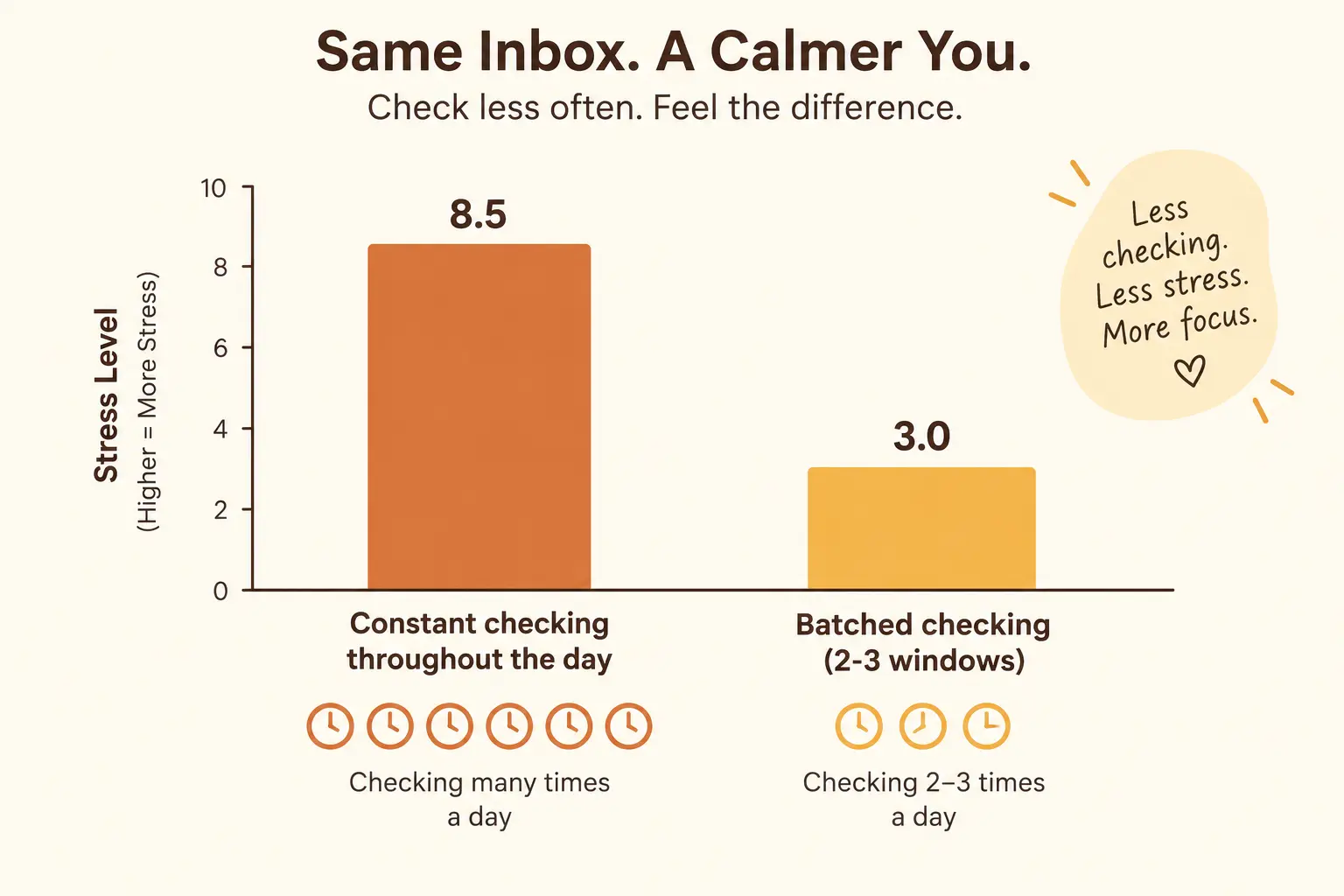
- Constant, unbatched email checking is linked to higher reported stress than checking on a fixed schedule a few times a day.[2]
- A small number of repeat, low-value senders — newsletters, automated alerts — account for a large share of daily inbox volume.
- Sorting email into a handful of folders based on required action reduces decision fatigue more than trying to fully process each message once.
Inbox Zero was never really about the number zero — it was about not losing track of things that matter. Somewhere along the way, the number became the goal itself, and that's where most people's email systems quietly fall apart. The average office worker gets well over 100 emails a day and spends more than two hours managing that inbox.[1] Trying to drive that down to a literal zero, every single day, indefinitely, is a maintenance burden most schedules simply can't absorb — and the guilt of "failing" at it often makes people feel worse about their inbox than before they tried.
Why Inbox Zero Backfires for Most People
Inbox Zero is a genuinely useful daily practice but a poor permanent goal, because it conflates two different things: staying on top of what matters, and maintaining a specific number. The moment work gets busy, travel happens, or a backlog builds for a few days, the unread count spikes — and for anyone who's tied their sense of being organized to that number, the spike itself becomes a source of stress rather than just a normal fluctuation in workload.
This mirrors a pattern seen across other digital-clutter habits: the goal that actually holds up over time is rarely "zero," it's "nothing important gets lost." The digital minimalism framework makes the same distinction for apps and notifications — the aim isn't an empty phone, it's intentional use.
What Actually Matters: Triage Over Zero
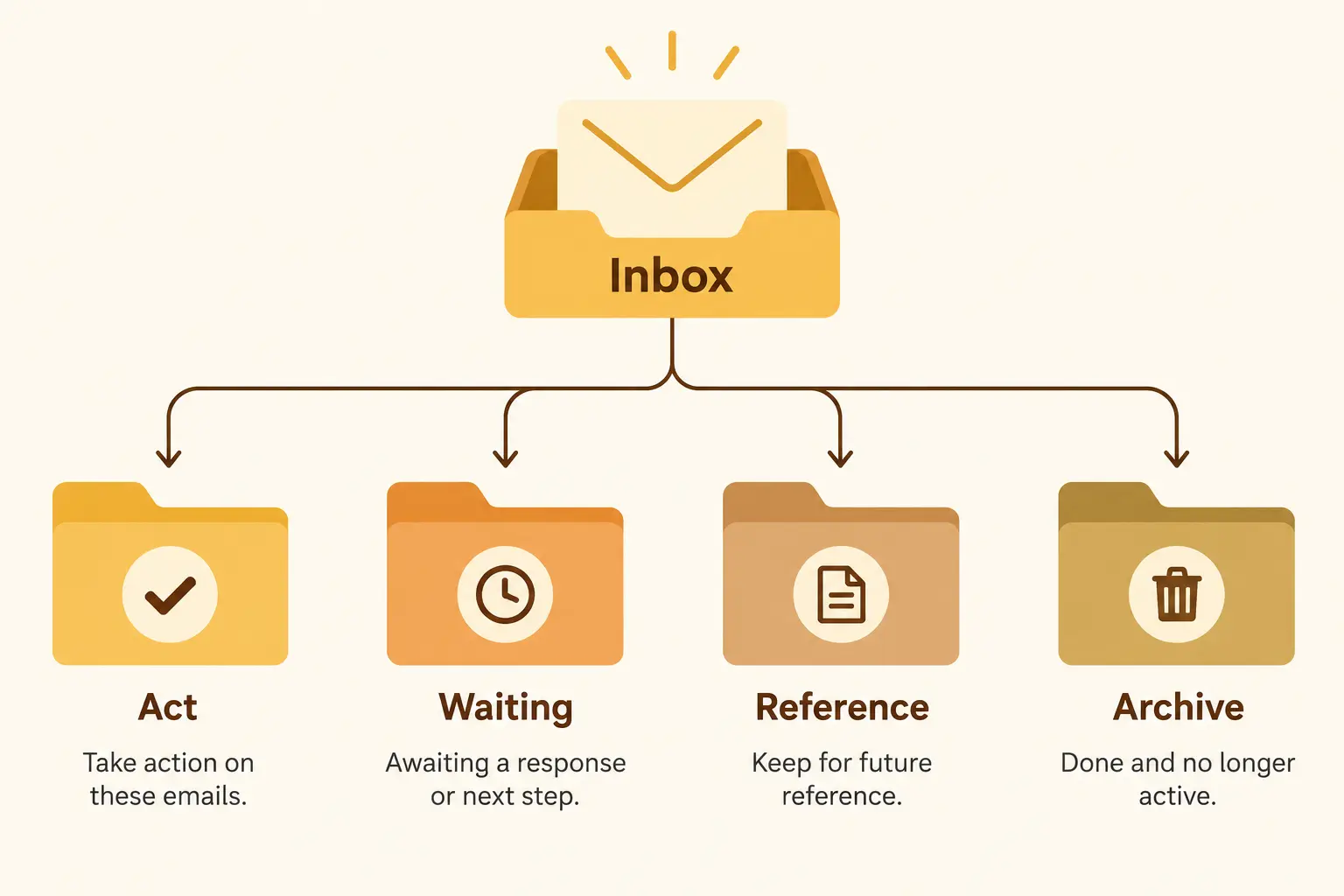
The realistic replacement for Inbox Zero is a triage system — a way of sorting incoming email into a small number of categories based on what it actually requires from you, rather than trying to fully read, respond to, and archive every message the moment it arrives.
This turns one overwhelming inbox into four much smaller, more specific lists. "What needs my attention right now?" becomes a question you can answer by glancing at one folder — Act — instead of scanning hundreds of mixed-priority messages every time.
The Step-by-Step Triage Method
- Set up four folders — Act, Waiting, Reference, Archive — in addition to your existing inbox.
- Do a single sorting pass. Move each email into a folder based on what it needs, without fully answering or processing it during this first pass.
- Work the Act folder in batches. This is now your real to-do list for email — smaller, prioritized, and separated from lower-stakes messages.
- Review Waiting weekly. Follow up on anything that's gone quiet longer than expected.
- Let Reference and Archive sit. These don't need active management — search handles retrieval when you actually need something from them.
The genuine unlock here is that most of your inbox — the Reference and Archive categories — never needed daily attention in the first place. Isolating the Act folder is what actually reduces the felt weight of an overloaded inbox.
Batching Beats Constant Checking
Leaving email open all day and checking it continuously is one of the biggest drivers of email-related stress, independent of total volume. Constant, unbatched checking has been linked to higher reported stress than checking on a fixed schedule a few times a day, largely because each check fragments attention away from whatever else you were doing.[2] Checking email 2-3 times daily in dedicated windows — say, mid-morning, after lunch, and before wrapping up — still catches everything that matters, without the constant interruption cost.
| Check-in | Purpose | Length |
|---|---|---|
| Morning | Triage overnight messages into folders; handle anything urgent | 15-25 min |
| Midday | Work the Act folder; respond to what's genuinely time-sensitive | 15-25 min |
| End of day | Final triage pass; confirm nothing urgent is left unanswered | 10-15 min |
Clearing an Existing Backlog
If you already have thousands of unread emails, the fix isn't to individually process years of backlog — it's a single bulk pass. Search for anything genuinely time-sensitive or still unresolved first, handle that small subset, then select-all and archive or bulk-file the rest. Almost nothing sitting unread for months or years is still actionable, and treating the entire pile as urgent is exactly what makes the task feel impossible to start.
It helps to be honest about what an old, unread email actually represents: in the overwhelming majority of cases, if something in that backlog genuinely mattered, the sender would have followed up by now, or the deadline attached to it has already passed. Give yourself permission to archive in bulk without reading every subject line — you're not deleting anything, just moving it somewhere searchable and out of daily view. If a handful of items nag at you, pull those specific ones into your Act folder and leave the rest.
Setting Up Filters So It Doesn't Rebuild
A small number of repeat, low-value senders — newsletters, automated alerts, promotional email — typically account for a large share of daily inbox volume. Setting up a handful of filter rules to automatically route these away from the main inbox (into a separate folder, or straight to Archive with a label) is one of the highest-leverage single steps you can take, because it reduces the volume you have to triage at all, rather than just organizing what already arrived. Most major email providers support this natively — look for "Rules," "Filters," or "Create filter" in your settings.
Common Mistakes
- Treating "zero" as a daily requirement. A fluctuating unread count is normal — the goal is nothing important getting lost, not a specific number.
- Leaving email open continuously. This invites constant, fragmented checking, which is linked to higher stress than a batched schedule.
- Trying to fully process the backlog message by message. A single bulk pass handles a multi-year backlog far faster than sequential review.
- Skipping filters. Without them, newsletters and automated alerts rebuild the clutter within days of any cleanup effort.
- Mixing Act items with everything else. If your real to-do items live in the same list as newsletters and receipts, it's genuinely harder to see what actually needs you.
Final Thoughts
Inbox Zero isn't a bad idea — it's just the wrong target. The realistic version is a system where incoming email gets sorted quickly into a handful of categories, where checking happens in a few dedicated windows instead of continuously, and where filters quietly handle the low-value volume before it ever reaches you. None of that requires a spotless inbox at the end of the day. It requires knowing that nothing important slipped through — which is a much lower, much more sustainable bar.
The honest version of this advice: your inbox doesn't need to be empty. It needs to stop being the place where things quietly get lost.
If email is one piece of a bigger digital-clutter problem, the fuller digital minimalism framework and the 30-minute phone organization guide cover the notifications, apps, and habits around it.
This article covers general email organization practices and isn't a substitute for workplace-specific IT policies or professional productivity coaching.
Sources
[1] Workplace email volume and time-spent statistics. Available at: mckinsey.com
[2] Email checking frequency and self-reported stress research. Available at: pmc.ncbi.nlm.nih.gov